There’s little more frustrating than relying on smart home convenience, only for a key device to go rogue. Your robot vacuum, once a diligent helper, now sits silent, showing an ominous “offline” status in its app. This common issue can halt your automated cleaning routines, leaving you wondering why your intelligent cleaner has suddenly lost its connection. But don’t despair – understanding the common culprits behind an offline robot vacuum and knowing the right troubleshooting steps can quickly restore harmony to your smart home.
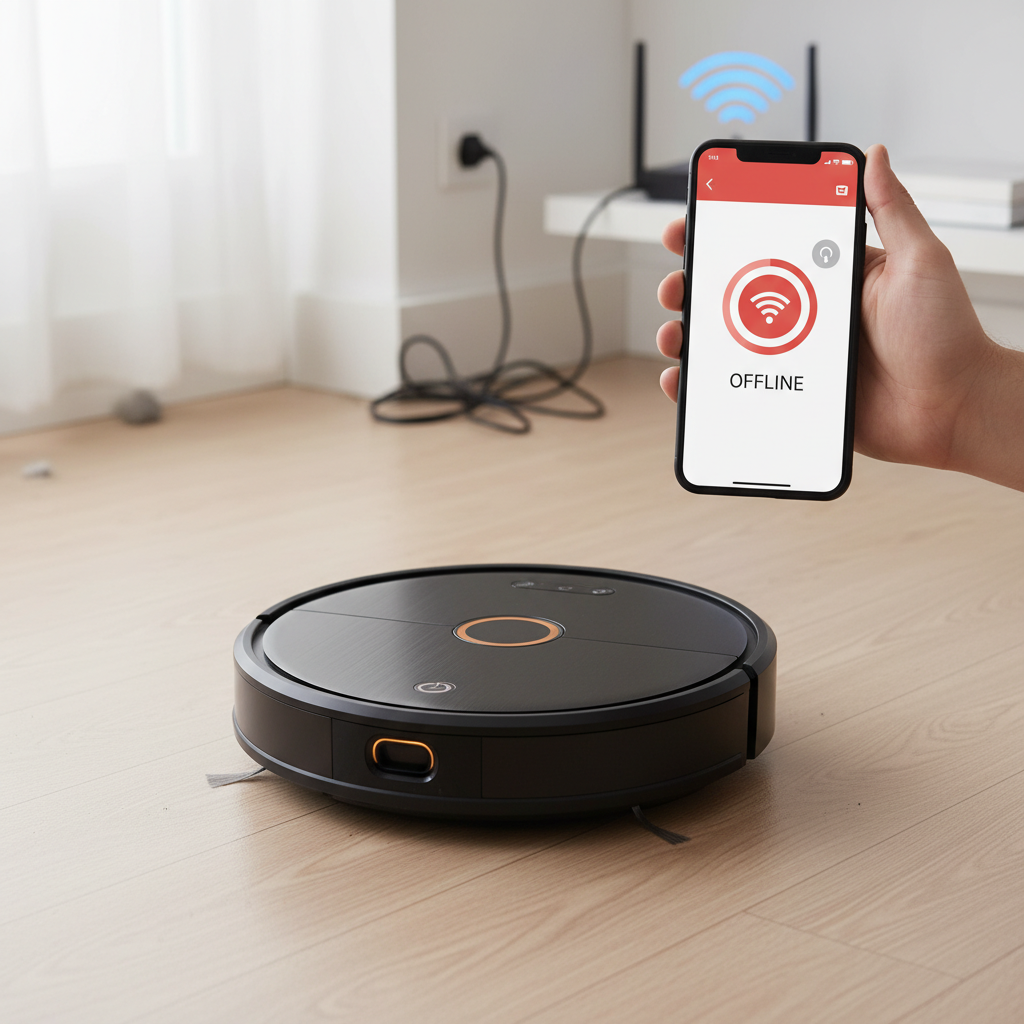
Understanding the “Offline” Status
When your robot vacuum cleaner is reported as “offline” in its companion app, it means the device has lost its connection to your home Wi-Fi network and, consequently, to the cloud server that allows remote control and monitoring. This state renders it unresponsive to app commands, unable to download updates, and incapable of executing scheduled cleans. Connectivity is the brain of your robot vacuum, enabling its smart features from mapping to virtual walls, so getting it back online is paramount for seamless operation.
Immediate Checks: The Basics First
Before diving into complex network diagnostics, let’s rule out the simplest explanations. Often, the solution is surprisingly straightforward.
- Is it Powered On and Charged? A dead or uncharged robot vacuum cannot connect to Wi-Fi. Ensure your robot is correctly docked on its charging station and that the station itself is plugged into a working power outlet. Check for any indicator lights on the robot that suggest a low battery or power issue. If the robot is off due to inactivity, simply turning it back on can sometimes resolve the offline status.
- Refresh the App: Sometimes, the issue isn’t with the robot’s connection but with the app’s display. Try force-closing the robot vacuum app on your smartphone or tablet and then reopening it. A simple refresh within the app (often by pulling down on the screen) can also update its status.
- Check Your Phone’s Internet Connection: Confirm that the device you’re using to control the robot vacuum has a stable internet connection. If your phone or tablet is offline, it won’t be able to communicate with the robot’s cloud services.
Common Wi-Fi and Network Issues
The majority of robot vacuum connectivity problems stem from your home Wi-Fi network. Smart devices, including robot vacuums, are particularly sensitive to network stability and configuration.
Weak Wi-Fi Signal
One of the most frequent reasons for a robot vacuum to go offline is a weak or inconsistent Wi-Fi signal.
- Robot Too Far from Router: The further your robot and its charging dock are from your Wi-Fi router, the weaker the signal will be. Walls, large appliances, and even furniture can further obstruct Wi-Fi signals.
- Interference: Other electronic devices, neighboring Wi-Fi networks, or certain building materials can interfere with your Wi-Fi signal, causing drops in connectivity.
- Solution: Try moving the robot vacuum and its charging base closer to your Wi-Fi router. If this isn’t practical, consider a Wi-Fi extender or mesh Wi-Fi system to improve coverage in areas where your robot operates.
|
Our Picks for the Best Robot vacuum cleaner in 2026
As an Amazon Associate I earn from qualifying purchases.
|
||
| Num | Product | Action |
|---|---|---|
| 1 | Tikom Robot Vacuum and Mop Combo, 5000Pa Robotic Vacuum Cleaner, 150 Min Max, App & Remote Control, Ideal for Hard Floor, Carpet, Pet Hair, Self-Charge(G8000 Max) |

|
| 2 | SHELIKI Robot Vacuum and Mop Combo, 3-in-1 Robotic Vacuums Cleaner with 70-Day Self-Emptying Base, LiDAR Navigation Smart Mapping & Strong 6000Pa Suction, for Pet Hair, Hard Floor, Carpet |
|
| 3 | Robot Vacuum and Mop Combo, 2 in 1 Robot Vacuum Cleaner with WiFi/App, Smart Robotic Vacuums with Strong Suction, Schedule, Self-Charging, Slim, Quiet, Ideal for Hard Floor, Pet Hair, Low Pile Carpet |
|
| 4 | eufy Robot Vacuum 11S MAX, Super Thin, Powerful Suction, Quiet, Self-Charging Robotic Vacuum Cleaner, Cleans Hard Floors to Medium-Pile Carpets, Black |
|
| 5 | roborock Q7 M5+ Robot Vacuum and Mop, Upgraded from Q5 Max+, Up to 7-9 Weeks Self-Empty, 10000Pa Suction, Dual Anti-Tangle System for Pet Hair & Carpet, PreciSense LiDAR Navigation, App Control, Black |
|
| 6 | Shark Matrix Clean | Robot Vacuum Cleaner with Powerful Suction for Pet Hair, Rugs, Carpets & Hard Floors | Self-Empty Base | 60-Day Capacity | Voice Control | LiDAR Navigation | Cool Grey | AV2511AE |
|
| 7 | Robot Vacuum and Mop, Mapping Robotic Vacuums Cleaner with LiDAR Navigation Smart & Strong Suction, WiFi/App/Alexa/Voice Control, Obstacle Avoidance, for Home, Wood/Hard Floors, Pet Hair -Gray |
|
| 8 | Tikom Robot Vacuum and Mop, 6000Pa Robotic Vacuum Cleaner with Self-Emptying Base, 90 Days Capacity, LiDAR Navigation, Home Mapping, Ideal for Pet Hair, Hard Floors, Carpet (L8000 Plus) |
|
| 9 | roborock Qrevo Series Robot Vacuum and Mop, 8000Pa Suction, Upgraded from Qrevo S, Anti-Tangle Brushes, Smart Obstacle Avoidance, Auto Mop Washing, All-in-One Dock, 200RPM Spinning Mops, Black(QV 35A) |
|
| 10 | ILIFE V2 Robot Vacuum Cleaner, Tangle-Free Suction, 120 Mins Runtime, Slim, Self-Charging Robotic Vacuum Cleaner, Ideal for Pet Hair and Hard Floors |
|
Router Overload or Glitches
Like any electronic device, routers can benefit from a fresh start.
- Router Reboot: A router that has been running for a long time might become sluggish or experience minor glitches that disrupt connections. Unplug your Wi-Fi router from its power source, wait for at least 30-60 seconds, then plug it back in. Allow a few minutes for the router to fully restart and re-establish your network before checking the robot vacuum’s status.
- Too Many Devices: If too many devices are simultaneously connected to your router, it might struggle to manage all connections, leading to some devices, like your robot vacuum, dropping offline.
Changed Wi-Fi Credentials
If you’ve recently changed your Wi-Fi network name (SSID) or password, your robot vacuum won’t be able to connect until it’s updated with the new information.
- Solution: You’ll need to reconfigure the network settings for your robot vacuum through its companion app. This usually involves going to the robot’s settings, selecting “Wi-Fi Settings,” and then choosing to reconnect or change the Wi-Fi. You will then input your new network name and password. In some cases, you might need to perform a Wi-Fi reset on the robot itself before re-pairing it.
Incorrect Wi-Fi Band (2.4 GHz vs. 5 GHz)
Most robot vacuums, especially older or more budget-friendly models, only support the 2.4 GHz Wi-Fi band.
- Band Incompatibility: If your router broadcasts both 2.4 GHz and 5 GHz networks with the same name, or if your phone automatically connects to the 5 GHz band during setup, your robot vacuum may fail to connect.
- Solution: During the initial setup or reconnection process, ensure your smartphone is connected to your home’s 2.4 GHz Wi-Fi network. You might need to temporarily separate your router’s 2.4 GHz and 5 GHz bands by giving them different names (e.g., “MyHomeWiFi-2.4GHz” and “MyHomeWiFi-5GHz”) in your router settings.
Other Network Configuration Nuances
- Special Characters in Wi-Fi Name/Password: Some robot vacuums struggle with Wi-Fi network names (SSIDs) or passwords that contain special characters (like !, @, #, $). If possible, try changing your Wi-Fi password to include only alphanumeric characters.
- Wi-Fi Encryption: Ensure your Wi-Fi network is using WPA or WPA2 encryption. WEP encryption is less secure and often not supported by modern smart devices.
- Hidden Network: If your router has a hidden network (SSID broadcast disabled), your robot vacuum may not be able to find it. Temporarily unhiding your SSID can help with the connection process, or you may need to manually enter the network details in the app.
- MAC Address Filtering/Firewall: Some advanced router settings, such as MAC address filtering, can block new devices from joining your network. Check your router’s settings to ensure this feature isn’t enabled, or add your robot vacuum’s MAC address to the approved list. Also, router firewall settings might be too restrictive; review these if other steps fail.
Robot and App-Specific Solutions
Sometimes, the issue isn’t with your network but with the robot itself or its controlling app.
Reboot Your Robot Vacuum
A simple reboot can clear internal software glitches.
- Power Cycle: Take your robot vacuum off its charging dock. Depending on the model, you might have a physical power button to hold down for 5-10 seconds to turn it off, then press it again to turn it back on. For models without an obvious power button, leaving it off the dock until its battery drains (if it’s not on the charging base) or performing a soft reset through the app might be options.
- Wi-Fi Reset: Many robot vacuums have a dedicated Wi-Fi reset function, often activated by pressing and holding a combination of buttons on the robot for several seconds. This clears the robot’s stored Wi-Fi credentials, allowing you to re-pair it as if it were a new device. Consult your robot’s manual for specific instructions.
Update App and Firmware
Outdated software can cause compatibility issues.
- App Updates: Check your phone’s app store for any available updates for your robot vacuum’s companion app. Developers frequently release updates to fix bugs and improve connectivity.
- Firmware Updates: If your robot vacuum’s firmware is outdated, it might struggle to maintain a stable connection. While you usually need to be online to download firmware updates, if you manage to temporarily reconnect, check for and install any pending robot firmware updates.
App Glitches
The app itself can sometimes be the source of the problem.
- Clear Cache/Reinstall App: If refreshing the app doesn’t work, try clearing its cache and data through your phone’s settings. As a last resort, delete the app and reinstall it. Remember that reinstalling might require you to log in again.
- Reboot Your Phone: A quick reboot of your smartphone can resolve minor communication hiccups between your phone and the robot’s app.
Location Permissions
Many smart device apps require location services for initial setup and ongoing functionality.
- Enable Location Access: Ensure the robot vacuum app has permission to access your device’s location. For newer iOS versions (14 and later), also check that “Precise Location” and “Local Network” access are enabled for the app in your phone’s privacy settings.
Reconnecting After Troubleshooting
Once you’ve addressed potential issues, try to reconnect your robot vacuum.
- Open the companion app and follow the on-screen instructions to add a new device or reconnect an existing one.
- You may be prompted to enter your Wi-Fi password again.
- Factory Reset (Last Resort): If all else fails, a factory reset of your robot vacuum can resolve persistent connectivity issues by returning it to its original, out-of-the-box state. Be aware that this will erase all stored data, including maps and cleaning schedules, requiring you to set up the robot from scratch.
Preventing Future Offline Incidents
A few proactive measures can help keep your robot vacuum reliably connected:
- Maintain a Stable Wi-Fi Network: Ensure your router is up-to-date and provides good coverage throughout your home, especially where the robot operates and charges.
- Optimal Dock Placement: Position the charging dock in an area with strong Wi-Fi signal, away from large obstructions or interference sources.
- Regular Updates: Keep both your robot’s firmware and its companion app updated to benefit from the latest bug fixes and performance improvements.
- Thoughtful Network Changes: If you change your Wi-Fi name or password, remember to update your robot vacuum’s settings promptly.
“A smart home is only as smart as its weakest link. Ensuring stable network connectivity for your robot vacuum is key to unlocking its full potential and maintaining a consistently clean home.” – Alex Chen, Smart Home Integration Specialist
Conclusion
An offline robot vacuum can disrupt the convenience you’ve come to expect, but it’s rarely a sign of a critical failure. By systematically working through common power, Wi-Fi, and software-related issues, you can usually diagnose and resolve the problem yourself. From basic reboots to fine-tuning router settings, these quick fixes are designed to get your robot vacuum back online and diligently cleaning your floors. With a little patience and a methodical approach, your automated cleaning assistant will be back to work in no time, ensuring your home remains spotless without constant intervention.
What’s the most common reason your smart devices lose connection at home?
Câu Hỏi Thường Gặp
Why does my robot vacuum keep disconnecting?
Robot vacuums often disconnect due to a weak or unstable Wi-Fi signal, interference from other devices, router glitches, or changes in network credentials. Outdated app or robot firmware can also contribute to persistent disconnection issues. Ensuring your robot is within good Wi-Fi range and your network is stable can prevent frequent disconnections.
Can a robot vacuum work without Wi-Fi?
Yes, most robot vacuums can operate without Wi-Fi for basic cleaning tasks by pressing the start button directly on the device. However, without a Wi-Fi connection, you will lose access to smart features like scheduling, remote control via the app, virtual no-go zones, cleaning maps, and firmware updates, significantly limiting its smart capabilities.
How do I reset my robot vacuum’s Wi-Fi?
The method to reset your robot vacuum’s Wi-Fi varies by brand and model. Typically, it involves pressing and holding a combination of buttons on the robot (e.g., “Spot Clean” and “Dock” buttons simultaneously) for several seconds until an indicator light flashes or a voice prompt confirms the reset. This clears its stored network settings, allowing you to re-pair it with your app.
What is the difference between 2.4 GHz and 5 GHz for robot vacuums?
The 2.4 GHz and 5 GHz bands are different Wi-Fi frequencies. The 2.4 GHz band offers a wider range and better penetration through walls but slower speeds, while the 5 GHz band provides faster speeds over a shorter range and less interference. Most robot vacuums operate on the 2.4 GHz band for its wider coverage, which is more beneficial for a device that moves around your home.