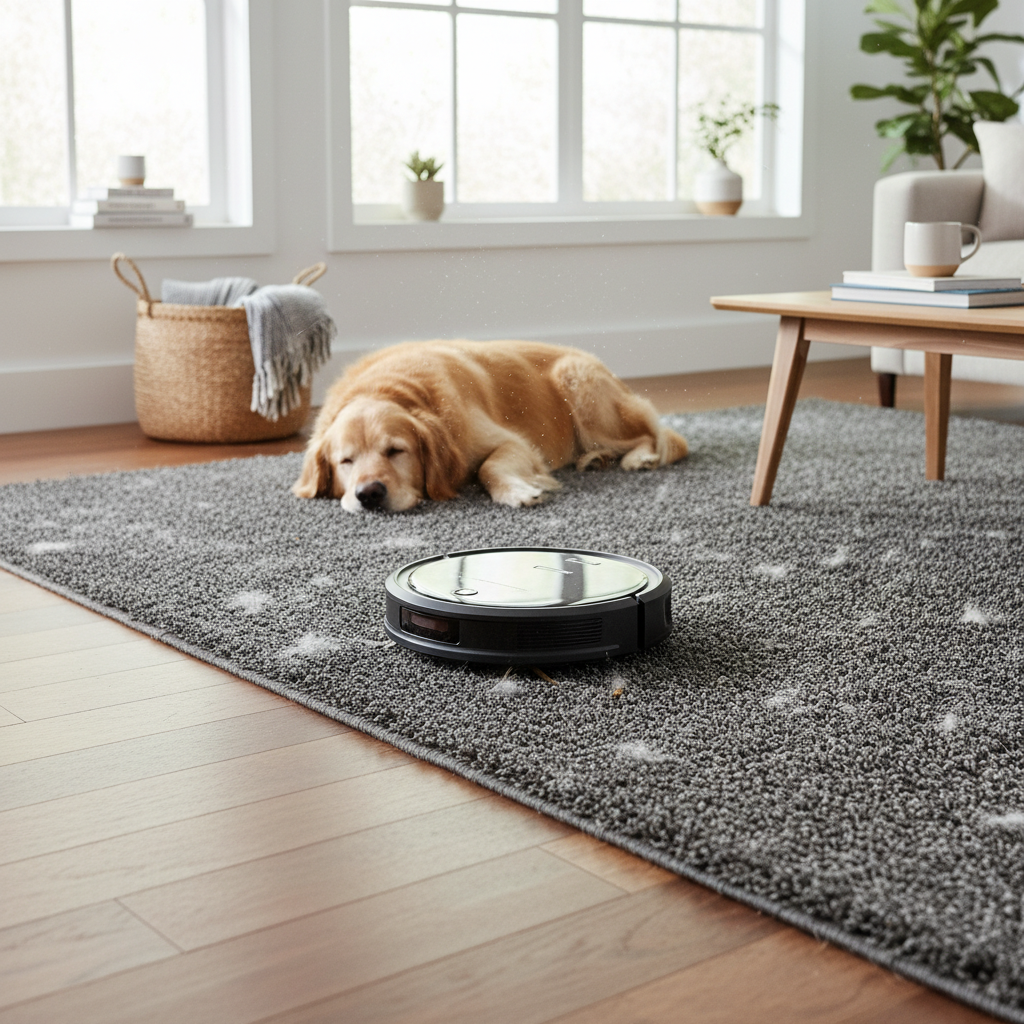
The advent of robot vacuums with auto-empty docks has revolutionized home cleaning, offering unparalleled convenience by allowing your robot to automatically dispose of collected dust and debris. This seamless operation means less hands-on maintenance for you. However, even these advanced systems can encounter hiccups, with a clogged auto-empty dock being a common frustration. When your robot vacuum struggles to empty its bin, it can disrupt your cleaning routine and lead to a less efficient clean. This guide will walk you through the essential steps to diagnose, unclog, and maintain your robot vacuum’s auto-empty dock, ensuring it operates smoothly and efficiently.
Understanding Your Robot Vacuum’s Auto-Empty Dock
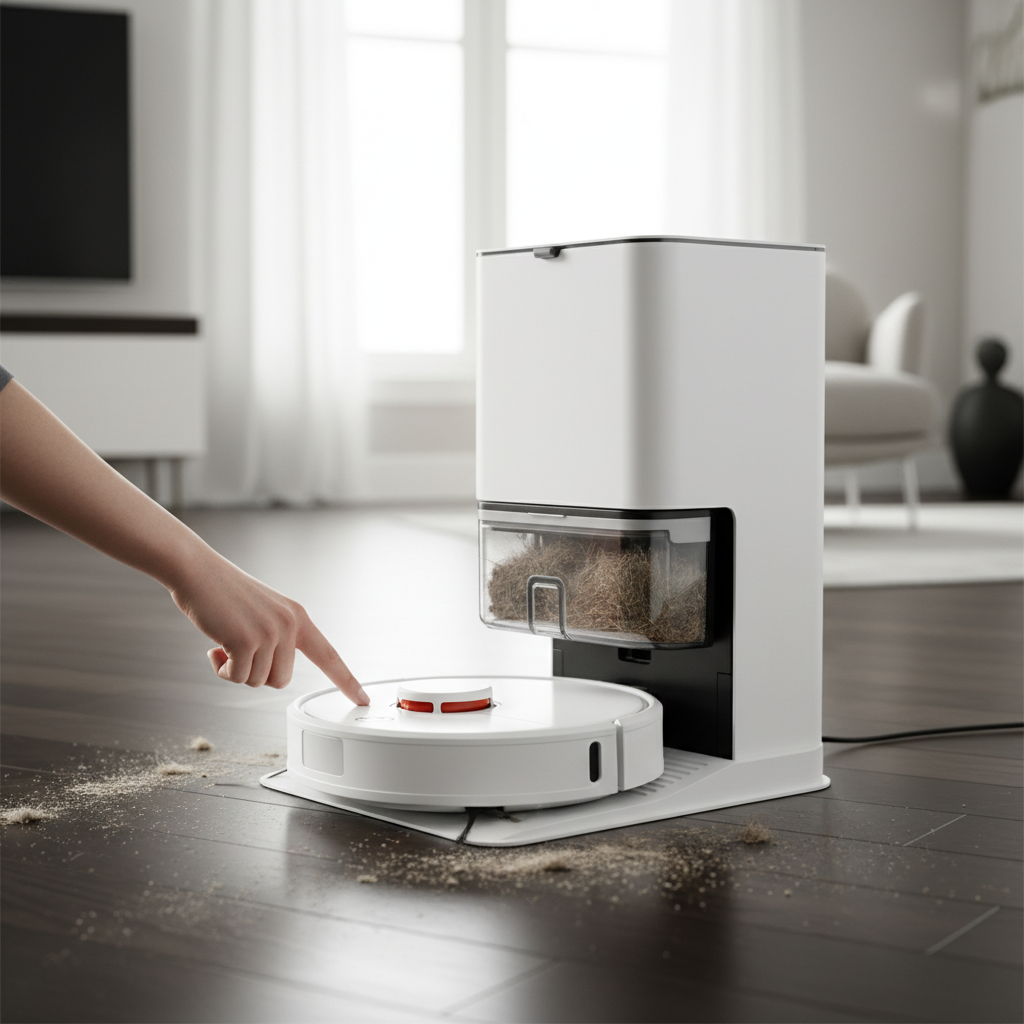
An auto-empty dock, also known as a self-empty station or clean base, is a sophisticated charging station that not only recharges your robot vacuum but also automatically suctions the dirt and debris from the robot’s internal dustbin into a larger disposable bag or container within the dock itself. This feature significantly extends the time between manual bin emptying, often allowing for weeks or even months of hands-free operation.
The process typically involves the robot aligning with the dock, creating a seal, and then the dock activating a powerful suction motor to pull contents from the robot’s bin through a dedicated evacuation port. This convenience is a game-changer for many households, especially those with pets or allergies, as it minimizes exposure to dust and allergens.
Common Reasons for Clogs:
Clogs in an auto-empty dock usually stem from a few key issues:
- Large Debris: Items like socks, large paper scraps, or pet toys accidentally vacuumed up can get stuck in the narrow evacuation port of either the robot or the dock.
- Hair and Lint Buildup: Long pet hair and human hair can intertwine and accumulate, forming dense blockages that restrict airflow.
- Fine Dust Accumulation: Over time, even fine dust can compact, particularly in the dock’s suction channel or internal tubing, reducing suction efficiency.
- Full or Improperly Installed Dust Bag: A full dust bag in the auto-empty dock or a bag that isn’t seated correctly can prevent proper emptying.
- Sensor Malfunctions: If the robot or dock sensors are dirty or obstructed, the system might not recognize that the robot is properly docked, thus failing to initiate the emptying cycle.
Initial Troubleshooting Steps for Your Auto-Empty Dock
Before diving into deeper disassembly, begin with these simple checks, as many issues can be resolved with basic maintenance.
1. Check and Replace the Dust Bag
The most straightforward culprit for a non-emptying dock is often a full dust bag.
- Open the lid of your auto-empty dock.
- Visually inspect the dust bag. If it appears full, carefully remove it and replace it with a new one. Ensure the new bag is properly seated and sealed within its compartment. An improperly installed bag can prevent the vacuum from sealing and emptying correctly.
|
Our Picks for the Best Robot vacuum cleaner in 2026
As an Amazon Associate I earn from qualifying purchases.
|
||
| Num | Product | Action |
|---|---|---|
| 1 | ILIFE V2 Robot Vacuum Cleaner, Tangle-Free Suction, 120 Mins Runtime, Slim, Self-Charging Robotic Vacuum Cleaner, Ideal for Pet Hair and Hard Floors |

|
| 2 | Robot Vacuum and Mop Combo, 2 in 1 Robot Vacuum Cleaner with WiFi/App, Smart Robotic Vacuums with Strong Suction, Schedule, Self-Charging, Slim, Quiet, Ideal for Hard Floor, Pet Hair, Low Pile Carpet |
|
| 3 | SHELIKI Robot Vacuum and Mop Combo, 3-in-1 Robotic Vacuums Cleaner with 70-Day Self-Emptying Base, LiDAR Navigation Smart Mapping & Strong 6000Pa Suction, for Pet Hair, Hard Floor, Carpet |
|
| 4 | Robot Vacuum and Mop, Mapping Robotic Vacuums Cleaner with LiDAR Navigation Smart & Strong Suction, WiFi/App/Alexa/Voice Control, Obstacle Avoidance, for Home, Wood/Hard Floors, Pet Hair -Gray |
|
| 5 | roborock Q7 M5+ Robot Vacuum and Mop, Upgraded from Q5 Max+, Up to 7-9 Weeks Self-Empty, 10000Pa Suction, Dual Anti-Tangle System for Pet Hair & Carpet, PreciSense LiDAR Navigation, App Control, Black |
|
| 6 | Tikom Robot Vacuum and Mop, 6000Pa Robotic Vacuum Cleaner with Self-Emptying Base, 90 Days Capacity, LiDAR Navigation, Home Mapping, Ideal for Pet Hair, Hard Floors, Carpet (L8000 Plus) |
|
| 7 | Tikom Robot Vacuum and Mop Combo, 5000Pa Robotic Vacuum Cleaner, 150 Min Max, App & Remote Control, Ideal for Hard Floor, Carpet, Pet Hair, Self-Charge(G8000 Max) |
|
| 8 | eufy Robot Vacuum 11S MAX, Super Thin, Powerful Suction, Quiet, Self-Charging Robotic Vacuum Cleaner, Cleans Hard Floors to Medium-Pile Carpets, Black |
|
| 9 | roborock Qrevo Series Robot Vacuum and Mop, 8000Pa Suction, Upgraded from Qrevo S, Anti-Tangle Brushes, Smart Obstacle Avoidance, Auto Mop Washing, All-in-One Dock, 200RPM Spinning Mops, Black(QV 35A) |
|
| 10 | Shark Matrix Clean | Robot Vacuum Cleaner with Powerful Suction for Pet Hair, Rugs, Carpets & Hard Floors | Self-Empty Base | 60-Day Capacity | Voice Control | LiDAR Navigation | Cool Grey | AV2511AE |
|
2. Clean Docking Sensors
Both the robot vacuum and the auto-empty dock rely on sensors to communicate and align correctly. Dirt or debris on these sensors can disrupt the emptying process.
- On the Robot: Locate the docking sensor window, usually on the front bumper or underside of the robot. Wipe it clean with a dry, soft microfiber cloth.
- On the Dock: Find the corresponding sensor window on the auto-empty dock. Clean this area thoroughly as well.
3. Reboot the Robot and the Dock
A simple reset can often clear temporary glitches in the system.
- For the Dock: Unplug the auto-empty dock from the power outlet. Wait for about 30 seconds, then plug it back in.
- For the Robot: The reboot process varies by model. For many Roomba models, you can typically press and hold the CLEAN button for 20 seconds. For others, a reboot option might be available in the companion app. Consult your robot’s manual for specific instructions.
4. Force Empty the Bin Manually
Most robot vacuum apps and some robots themselves offer a manual “Empty Bin” function.
- With the robot properly docked, open its companion app.
- Look for an “Empty Bin” or similar command within the app’s controls.
- Alternatively, some robot models have a physical button on the robot (often the “Home” button) that, when pressed while docked, can trigger a manual emptying cycle. Try pressing it for a few seconds.
Step-by-Step Guide to Unclogging the Auto-Empty Dock
If the initial troubleshooting steps don’t resolve the issue, it’s time to investigate for physical blockages.
Safety First: Unplug Before You Unclog
Before you begin any physical inspection or cleaning, always ensure the auto-empty dock is unplugged from the power outlet. This prevents accidental activation and ensures your safety.
1. Inspect the Dock’s Evacuation Port and Suction Channel
The most common place for a clog is the main suction pathway within the dock itself.
- Locate the Suction Port: Examine the area where the robot’s dustbin connects to the dock. There’s typically a prominent opening or channel designed to pull debris.
- Remove Visible Obstructions: Use your fingers, a pair of tweezers, or a small brush to carefully pull out any visible hair, dust bunnies, or larger items stuck in this port.
- Access Internal Channels (If Applicable): For some models (like certain Roborock docks or Roomba Clean Bases), you may need to access internal tubes or channels.
- Many docks have removable covers at the top or rear. You might need a screwdriver to remove a few screws holding these covers in place.
- Once the cover is removed, you’ll gain access to the main evacuation tube. Inspect this tube for any blockages. Large clumps of hair or debris are often found here. Gently dislodge and remove them.
- Tip: Using a flashlight can help you see deeper into the channels.
- Use Compressed Air: After removing large debris, blast compressed air into the dock’s evacuation port and any accessible channels. This can dislodge finer dust and stubborn particles that are harder to reach manually.
2. Inspect the Robot’s Dustbin Evacuation Port
The robot’s internal dustbin also has an evacuation port that connects to the dock. This can also become clogged.
- Remove the dustbin from your robot vacuum.
- Locate the emptying port on the dustbin itself (this is where the dock’s suction mechanism connects).
- Clear any visible blockages from this port, which might include matted hair or compacted dust. A small brush or a cleaning tool provided with your vacuum can be effective here.
3. Address Sensor-Related Issues Beyond Surface Cleaning
While less common, deep-seated sensor issues can mimic a clog.
- For some older Roomba models (e.g., i7), users have reported that dirt accumulating behind the front bumper’s transparent window can obscure internal sensors responsible for detecting proper docking. If your robot isn’t recognizing that it’s docked, it won’t empty.
- Advanced Step: If you suspect this, you might need to carefully unscrew the robot’s front bumper to clean the internal side of the sensor window. Consult specific online forums or repair videos for your exact robot model before attempting this, as it involves minor disassembly. Proceed with caution to avoid damaging internal components.
Preventive Maintenance to Avoid Future Clogs
Regular upkeep is crucial to keep your auto-empty dock functioning flawlessly.
- Regularly Empty/Replace Dust Bags: Don’t wait until the dock is completely full. Check the bag frequently (e.g., once a month) or follow your app’s notifications.
- Clean Sensors Frequently: Make it a habit to wipe down the robot’s bumper sensors and the dock’s sensor window weekly with a dry cloth.
- Regularly Inspect Dock’s Channel: Periodically (e.g., every few weeks), unplug your dock and visually inspect the main evacuation port and accessible channels for any signs of debris buildup. Clear them proactively.
- Check Robot’s Dustbin Port: When you manually empty your robot’s dustbin (if you ever do, or for deep cleaning), inspect its evacuation port for blockages.
- Avoid Vacuuming Very Large Items: While robot vacuums are smart, they aren’t infallible. Try to pick up unusually large items, cables, or small toys from the floor before a cleaning cycle to prevent them from getting jammed.
- Trim Pet Hair (If Applicable): If you have pets that shed heavily, regularly grooming them can reduce the amount of hair your robot collects, minimizing the chances of hair clogs.
When to Contact Customer Support
If you’ve meticulously followed all the troubleshooting and unclogging steps, but your auto-empty dock still refuses to work, it might be time to contact the manufacturer’s customer support. There could be a more complex internal malfunction, a faulty sensor, or a motor issue that requires professional repair or replacement. Provide them with a detailed account of the steps you’ve already taken to help them diagnose the problem more efficiently.
Conclusion
A clogged auto-empty dock can be a minor annoyance, but with a systematic approach, you can usually resolve the issue yourself. By understanding how your system works, performing regular maintenance, and knowing how to tackle clogs when they occur, you can ensure your robot vacuum continues to deliver the hands-free cleaning experience you invested in. Don’t let a minor blockage hinder the convenience of modern smart home cleaning.
What other robot vacuum maintenance challenges have you faced, and how did you overcome them?
Frequently Asked Questions
Why is my robot vacuum saying “dustbin full” even after emptying into the dock?
This often indicates that the robot’s internal sensor believes the bin is still full, or the auto-empty dock failed to successfully clear the bin. Check for clogs in the robot’s dustbin evacuation port, ensure the dock’s bag isn’t full, and clean the docking sensors on both the robot and the base. A full or clogged dust bag in the dock is a frequent culprit.
Can I use a regular vacuum cleaner to unclog my auto-empty dock?
Yes, in many cases, you can use a regular vacuum cleaner’s hose attachment to try and suction out blockages from the auto-empty dock’s evacuation port. Ensure the dock is unplugged before attempting this. The powerful suction can often dislodge stubborn debris that fingers or compressed air might miss.
How often should I clean my robot vacuum’s auto-empty dock?
For optimal performance, it’s recommended to visually inspect the dock’s evacuation port and sensors at least once a month, or more frequently if you have pets or a particularly dusty home. Replace the dust bag in the dock as indicated by your robot’s app or when it appears full, typically every 4-8 weeks depending on usage.